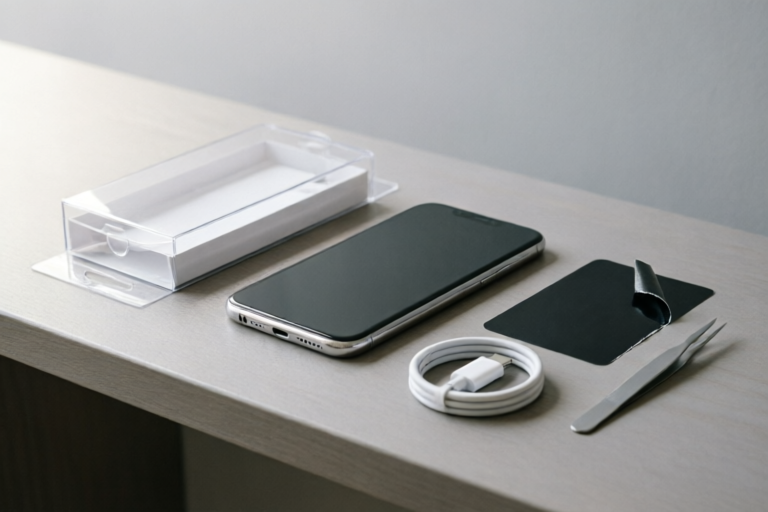
Quick Tips: Setting Up Your New Tech Device
Effortlessly Set Up Your New Tech Device
Introduction to Setting Up Your New Tech Device
Welcome to the exciting world of new technology! Whether you've just bought a smartphone, laptop, or tablet, setting it up correctly is crucial for optimal performance and security. Proper setup ensures that you can fully enjoy all the features your device offers while keeping your personal information safe.
Overview of the Importance of Proper Setup
Setting up your new tech device properly is not just about connecting it to Wi-Fi or charging it for the first time. It's also about ensuring that all security measures are in place and that you're familiar with the basic functions of your device. This will help prevent any potential issues down the line and make your experience smoother.
Brief Mention of Common Tech Devices
The tips provided here apply to various types of tech devices, including smartphones, laptops, and tablets. Each type has its own specific setup requirements, but many of the steps are universal.
Importance of Following Manufacturer Instructions
Always refer to the manufacturer's guide for detailed instructions. These guides provide important information about warranty, safety precautions, and recommended maintenance practices.
Initial Setup Steps
Charging Your Device for the First Time
Before you do anything else, charge your device for the first time. Most manufacturers recommend charging it to at least 80% before using it. This helps calibrate the battery and ensures that your device runs smoothly from the start.
Connecting to Wi-Fi or Other Network Options
Once your device is charged, connect it to your home Wi-Fi network or another preferred network. This step is essential for accessing the internet, downloading updates, and using cloud services.
Setting Up User Accounts and Passwords
Creating a strong password and setting up a user account are critical for protecting your device and personal data. Choose a password that is difficult to guess and enable biometric authentication if available.
Software Configuration
Updating the Operating System and Apps
Make sure your device’s operating system and pre-installed apps are up-to-date. Regular updates often include important security patches and performance improvements.
Configuring Privacy Settings and Security Features
Take some time to configure privacy settings and activate security features. This includes enabling location services only when necessary, setting up two-factor authentication, and managing app permissions.
Enabling Automatic Updates for Better Performance
Enable automatic updates for both the operating system and apps. This ensures that your device always has the latest security patches and features.
Personalization Options
Customizing Home Screens and Shortcuts
Personalize your home screen by adding widgets, changing icons, and creating shortcuts for frequently used apps. This makes your device more convenient to use and visually appealing.
Adjusting Display Settings for Comfort and Accessibility
Adjust brightness, contrast, and color settings to suit your preferences. You can also enable accessibility features such as magnification, text-to-speech, and voice control.
Adding Personal Touches Like Wallpapers and Themes
Choose a wallpaper or theme that reflects your personality. Many devices offer a wide selection of pre-installed themes, or you can download custom ones from third-party sources.
Troubleshooting Common Issues
Identifying and Resolving Connectivity Problems
If you're experiencing connectivity issues, check your Wi-Fi signal strength, reset your router, and ensure that your device is connected to the correct network.
Fixing Battery Issues and Optimizing Power Usage
To extend battery life, disable unnecessary background processes, reduce screen brightness, and turn off Bluetooth and GPS when not in use.
Addressing Software Glitches and Restarting Solutions
If you encounter software glitches, try restarting your device. If the problem persists, consider performing a factory reset, but be sure to back up your data first.
Final Tips and Conclusion
Recommended Maintenance Practices for Long-Term Use
Regularly clean your device, update software, and perform backups. This helps keep your device running smoothly and protects your data.
Quick Checklist to Ensure All Settings Are Correct
- Check Wi-Fi and network connections.
- Verify that all security features are enabled.
- Ensure that all apps are updated.
- Confirm that personalization settings are to your liking.
Encouragement to Explore Additional Features and Settings
Your new tech device is full of features waiting to be discovered. Take some time to explore additional settings and features to enhance your experience.
Comments

I love the personalization section. It gave me ideas on how to make my tablet feel more unique.

The battery optimization tips were spot on. My phone lasts way longer now. Cheers!

Super helpful! I usually skip setting up properly but this guide made it quick and easy. Thanks!

Had some connectivity issues but the troubleshooting section really helped. Restarting my router did the trick.
Adding custom wallpapers was super easy after following these steps. Now my phone looks exactly how I wanted!

Great tips! Quick question though, does anyone know if it's better to enable auto-updates or check them manually?

Worked perfectly! Especially the part about updating the OS and apps right away. My laptop is running so much smoother now.