Tech & Software
How to Install New Programs on Windows 11 Quickly
Effortless Setup, Seamless Performance
## How to Install New Programs on Windows 11 Quickly
In the modern digital landscape, the speed at which you can access and deploy software defines productivity. With Windows 11, Microsoft has streamlined the interface, yet choosing the right installation method can still determine the difference between a smooth workflow and a system bogged down by unnecessary clutter. Whether you are setting up a brand-new laptop or optimizing an existing workstation, understanding the nuances of program installation is crucial. This guide explores the most effective pathways to add software to your ecosystem, balancing speed, security, and convenience.
### 1. Introduction to Quick Installation Methods
Before diving into the mechanics of installation, it is vital to understand why efficiency matters beyond mere time savings. Every application installed on a computer consumes system resources, including RAM, disk space, and CPU cycles during setup processes. Inefficient installation methods often lead to bloatware, hidden background services, and prolonged update cycles. Windows 11 offers several distinct layers of software deployment, each suited for different user needs.
The traditional method involved downloading executable files from random websites, navigating through pop-up ads, and granting administrative privileges blindly. While this approach remains valid, it carries inherent security risks. Modern alternatives prioritize verified sources and automated management tools. By mastering the diverse toolkit available—from the curated Microsoft Store to the powerful Windows Package Manager—you gain control over your operating system's health. In the following sections, we will dissect each method, providing actionable steps and pro-tips to ensure your installations are lightning-fast and secure.
### 2. Utilizing the Microsoft Store
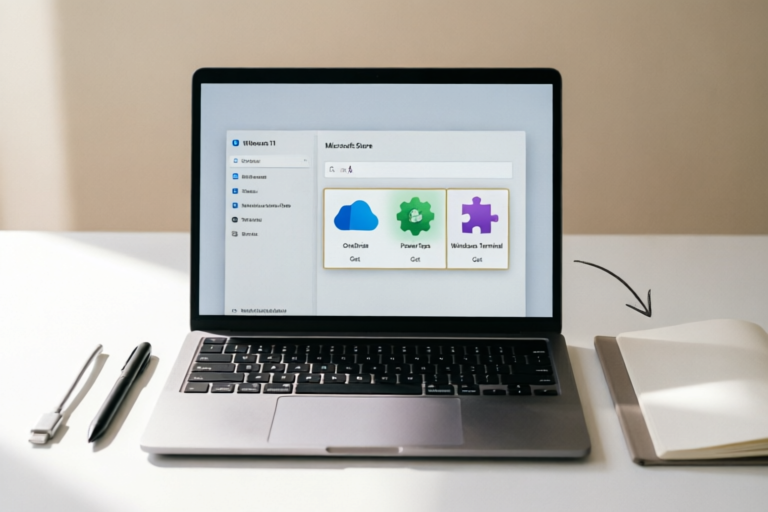
For many users, the first instinct when needing new software is to open the app store built directly into the operating system. This method is designed for simplicity and security above all else.
#### Why Use the Microsoft Store?
The primary advantage of the Microsoft Store is verification. Unlike third-party repositories, every app listed undergoes a security review process by Microsoft. This significantly reduces the risk of downloading malware disguised as legitimate utilities. Additionally, updates for Store apps are centralized. When a developer pushes a patch, Windows notifies you in one place, eliminating the need to manually visit individual vendor websites.
#### Step-by-Step Installation Guide
1. **Open the App Launcher:** Click on the Start button located at the bottom center of your taskbar. Alternatively, press the Windows key on your keyboard.
2. **Search for "Store":** Type "Microsoft Store" into the search bar and select the icon from the results. You can also pin the app to your taskbar for future quick access.
3. **Navigate and Search:** Once the window opens, utilize the search bar at the top left. Type the name of the application you require. For popular software like Zoom, Spotify, or WhatsApp, browsing categories under "Apps & Games" is also effective.
4. **Select the Application:** Click on the desired app to view its details page. Here, you will find screenshots, version history, and developer ratings.
5. **Click "Get" or "Install":** If the app is free, click the green button. If it costs money, enter payment details. The download progress indicator will appear in your notification center.
6. **Launch:** Once the progress bar completes, the button changes to "Launch." Clicking this immediately runs the software.
#### Troubleshooting Common Issues
Sometimes, the Store may fail to install due to corrupted cache files. To fix this, open the Settings menu, navigate to System > Apps, locate the Store app, select Advanced Options, and then run the Repair and Reset buttons. Regular maintenance here ensures the storefront remains responsive.
### 3. Downloading Standard Executables
While the Store offers convenience, not all software is available there. Developers often prefer hosting their full-featured desktop applications on their own websites to maintain direct control over features and support channels. This typically involves downloading `.exe` or `.msi` files.
#### Understanding File Types
The `.exe` file is an executable binary that contains the installer logic. When run, it guides you through a setup wizard, asking where to install files and whether to create desktop shortcuts. The `.msi` file is a standardized database for Windows Installer technology, allowing for silent installs and centralized deployment across corporate networks. Both serve the same ultimate goal but offer different flexibility levels.
#### Best Practices for Manual Downloads
1. **Verify the Source:** Never download critical drivers or software from aggregator sites. Go directly to the official developer website. Look for HTTPS in the URL bar to ensure encrypted communication.
2. **Check Digital Signatures:** Before running the file, right-click on the downloaded EXE, select Properties, and click on the Digital Signatures tab. Valid signatures confirm the software comes from a trusted publisher.
3. **Read the Prompt Carefully:** During installation, pay attention to "Custom" or "Advanced" options. Many freeware programs bundle adware or toolbars by default. Selecting custom installation allows you to decline these unwanted extras.
4. **Admin Privileges:** Be prepared to accept User Account Control (UAC) prompts. Only grant permission if you initiated the action. Legitimate software requires administrative rights to modify system folders, whereas malware attempts to bypass this guard.
#### Managing Post-Installation
After the setup wizard finishes, do not close the browser immediately. Reboot your system if prompted to finalize registry updates or driver configurations. Then, verify the functionality of the software by opening it and checking the preferences menu for auto-start settings.
### 4. Automating with Windows Package Manager
For power users and IT professionals, Windows 11 includes a revolutionary command-line tool known as Windows Package Manager, or simply "WinGet". This tool allows you to script the installation of hundreds of applications in seconds.
#### What is Windows Package Manager?
WinGet is an open-source shell utility included natively in newer builds of Windows 11. It connects to a repository hosted by Microsoft and GitHub, containing definitions for thousands of applications ranging from development tools like Visual Studio Code to entertainment software.
#### Installing WinGet (If Not Present)
Although pre-installed on most updated versions of Windows 11, some legacy systems may lack it. You can install it via the Store or by running the appropriate PowerShell command provided on the official GitHub repository.
#### Command-Line Usage
To begin using WinGet, open PowerShell or Command Prompt. Navigate to the directory where you want to save logs, though this is optional. Use the following syntax:
```shell
winget search
```
This lists all matches for the query. Once identified, use the ID or Name to install:
```shell
winget install --id
```
For example, installing Google Chrome would look like this:
```shell
winget install Google.Chrome
```
By default, this installs silently without user interaction. If you need to specify a location, add the `--silent` switch.
#### Benefits of Automation
The true power lies in scripting. Imagine you have a new PC to set up for five employees. Instead of logging in three times to download and install browsers, chat apps, and office suites, you create a simple text file with a list of install commands. Run it once, and your workstations are populated automatically. This eliminates human error and ensures consistency across machines. Furthermore, you can automate updates for all installed apps using `winget upgrade --all`, keeping your security posture tight.
#### Advanced Configuration
You can export your list of installed packages using `winget export -f c:\apps.txt`. This file serves as a backup manifest. In disaster recovery scenarios, you can re-import this list onto a fresh machine to restore your entire software environment instantly.
### 5. Leveraging Portable Applications
Not every software needs to leave a trace on your hard drive. Portable applications offer a unique alternative for lightweight computing and privacy-conscious users. These programs are packaged to run directly from a folder or external storage media without requiring system registration.
#### The Concept of Portability
When you install standard software, it often creates entries in the Windows Registry, drops DLLs in system folders, and sets up service accounts. Portable software bundles all dependencies into a single directory. This makes them highly flexible; you can carry your personal configuration and applications on a USB stick and plug it into any compatible Windows machine.
#### When to Use Portable Apps
Portable applications are ideal for temporary tasks, such as data recovery, virus scanning on public computers, or managing passwords while traveling. Popular examples include LibreOffice, Firefox, and various image editors. They are particularly useful in corporate environments where installing software is restricted, allowing users to run permitted tools safely.
#### Installation Process (Or Lack Thereof)
Since there is no traditional installation, you simply extract the zip archive to a folder and run the main executable. However, caution is advised regarding storage locations. Avoid placing portable apps on cloud-synced folders (like OneDrive or Dropbox) unless configured carefully, as sync conflicts can corrupt the single-portable setup. Keep them on local drives or dedicated flash drives.
#### Limitations to Consider
While convenient, portable apps do not integrate as deeply with the OS. They may not show up in the Control Panel uninstaller, making removal tricky. Updates must be handled manually or via internal update mechanisms within the portable suite. For long-term, heavy-duty daily usage, standard installation usually offers better stability and integration.
### 6. Conclusion and Safety Tips
Navigating the world of software installation on Windows 11 offers a spectrum of choices, each with distinct trade-offs between convenience, speed, and resource consumption. The Microsoft Store provides a secure, hands-free experience perfect for casual users. Traditional executables offer the widest compatibility but require vigilance regarding source verification. Windows Package Manager empowers tech-savvy users with unprecedented automation capabilities, while portable applications deliver unparalleled flexibility for mobile workflows.
Ultimately, the best strategy is often a hybrid approach. Rely on the Store for everyday consumer apps, use official executables for specialized professional tools, employ WinGet for bulk setups, and reserve portable solutions for emergency or travel use.
#### Essential Safety Reminders
Regardless of the method chosen, cybersecurity must remain your priority.
1. **Antivirus Scanning:** Configure Windows Defender to perform real-time scanning on all downloads. Run a manual scan before executing new files.
2. **Least Privilege Principle:** Only run applications with Administrator rights when absolutely necessary. Creating a standard user account for daily tasks isolates potential threats.
3. **Regular Backups:** Before attempting complex modifications or large-scale software deployments, ensure you have a system image or backups of important data. A botched update or malicious install should never result in permanent loss.
4. **Stay Updated:** Enable automatic updates for both the OS and your installed applications. Security patches are frequently released to address newly discovered vulnerabilities.
By integrating these methodologies into your routine, you transform software installation from a chore into a streamlined component of your digital life. Efficiency isn't just about saving minutes; it's about building a resilient, secure, and responsive computing environment tailored to your needs. Happy installing!
---
*Note: Always ensure your internet connection is stable during download processes to prevent incomplete files, which can cause installation failures.*
*Disclaimer: We do not endorse specific non-open-source tools found online. Always download software directly from developers or trusted repositories.*
Comments

PrivacyFirst
be careful with those free tools sometimes they bundle adware even if its legit. good tips tho
👍 22👎 0

NewbieJoe
where do i get winget initially? did search but couldnt find it
👍 17👎 0

DevDave
simple and clear thanks
👍 11👎 0

SilentReader
portable mode is a lifesaver for work laptops where i cant install stuff
👍 4👎 0

Jenny_Designs
what if the app doesn't show up in store? mine kept saying error 0x800 something
👍 29👎 0

Alex_Win11
finally used the pkg manager suggestion, installed vs code in like 10 sec. way better then manual downloading
👍 9👎 0