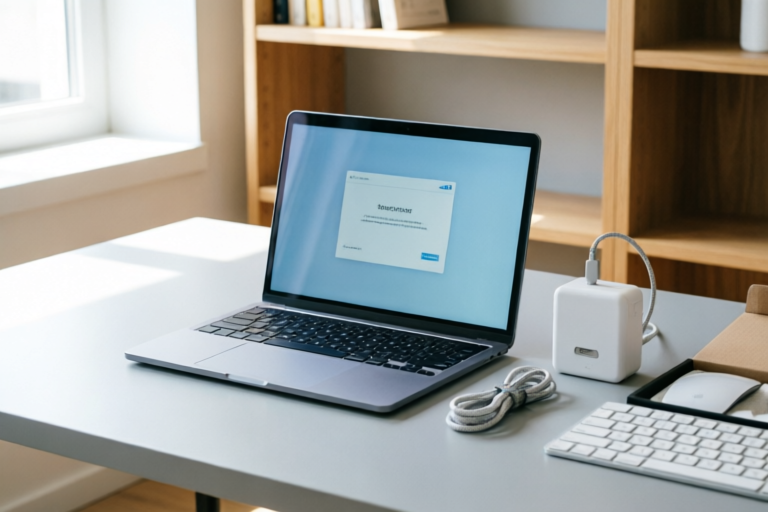
How to Set Up Your New Computer in Minutes
Effortless Computer Setup in Minutes
Introduction
Welcome to our comprehensive guide on how to set up your new computer in minutes! Whether you're a tech-savvy individual or a first-time computer user, this article will walk you through the entire process of getting your new machine ready for use.
The purpose of this guide is to provide you with a clear and concise step-by-step tutorial that ensures you can start using your computer as soon as possible. Efficiently setting up a new computer not only saves time but also helps prevent potential issues down the line. By following a structured setup process, you can ensure everything works smoothly right from the beginning.
Initial Setup and Hardware Configuration
Connecting Essential Peripherals
The first step in setting up your new computer is to connect the essential peripherals such as the keyboard, mouse, and monitor. Ensure these are properly connected to avoid any connectivity issues later on.
Installing Necessary Cables and Power Supplies
Make sure all necessary cables and power supplies are correctly installed. This includes connecting the power cord to both the computer and an appropriate outlet. Additionally, check if there are any specific adapter requirements mentioned in the manual.
Checking Hardware Compatibility and Troubleshooting Common Issues
Before proceeding further, it’s important to verify that all hardware components are compatible with each other. If you encounter any problems during this stage, refer to the troubleshooting section at the end of this guide for common solutions.
Operating System Installation
Choosing Between Pre-Installed OS or Fresh Installation
Your new computer may come with a pre-installed operating system like Windows or macOS. However, if you prefer starting fresh, consider reinstalling the OS from scratch. Both options have their advantages depending on your needs.
Step-by-Step Guide for Installing Windows or macOS
- Windows: Insert the Windows installation disk or USB drive, boot from it, and follow the on-screen instructions. Choose your preferred language, keyboard layout, and accept the license terms. During installation, select custom installation to partition your hard drive if needed.
- macOS: Boot your Mac from the recovery mode by holding down Command + R while turning on your Mac. Follow the prompts to reinstall macOS. Select your preferred language and agree to the terms before continuing with the installation.
Setting Up User Accounts and Initial Configurations
Once the operating system is installed, create a user account and set up initial configurations such as date and time settings, network preferences, and privacy controls. These steps help personalize your computing experience right away.
Software Installation and Updates
Essential Software Packages for Productivity
To maximize productivity, install essential software packages such as office suites (Microsoft Office, Google Docs) and web browsers (Chrome, Firefox). These tools enable you to perform various tasks more efficiently.
Security Software (Antivirus, Firewall)
Protect your computer against malware and unauthorized access by installing reputable antivirus software and enabling the built-in firewall. Regular updates are crucial to maintain security.
Updating System and Installed Applications
Ensure your operating system and all installed applications are up-to-date. This helps fix bugs, improve performance, and enhance security. Check for updates regularly via the settings menu or through third-party update managers.
Personalization and Optimization
Customizing Desktop Settings and Shortcuts
Personalize your desktop environment by adjusting background images, screen resolution, and font sizes according to your preference. Create useful shortcuts on the desktop or taskbar for frequently used programs.
Configuring Power Management and Performance Settings
Optimize power consumption and performance by configuring power management settings and adjusting performance profiles. For example, switch to high-performance mode when gaming or running resource-intensive applications.
Organizing Files and Folders for Easy Access
Keep your files organized by creating folders based on categories such as documents, pictures, videos, etc. Use descriptive names for easy identification and retrieval later.
Final Checks and Tips
Testing All Components for Proper Functioning
After completing the setup, thoroughly test all components including external devices, internet connection, and multimedia capabilities. Ensure everything operates flawlessly before proceeding with daily usage.
Recommended Maintenance Practices for Longevity
To extend the lifespan of your computer, implement regular maintenance practices such as cleaning dust from internal components, defragmenting drives, and performing disk checks. Additionally, back up important data periodically.
Additional Resources and FAQs for Further Assistance
If you encounter any difficulties during the setup process, consult additional resources provided by manufacturers or seek help from online forums. Frequently asked questions (FAQs) can also offer valuable insights into common issues.
Conclusion
In conclusion, we hope this guide has equipped you with the knowledge and confidence to set up your new computer efficiently. Remember to explore additional features and settings to fully utilize your device’s capabilities. Don’t hesitate to reach out if you have any feedback or suggestions for future improvements. Happy computing!
Comments

After setting up, my computer runs much smoother. Thanks for the tips on optimizing performance.

Had a few issues with hardware compatibility but your troubleshooting tips saved the day!

The file organization tips were super helpful. Finally got my documents in order.

Is there a way to speed up the OS installation process even more? Maybe some pre-configured settings?

Installed Windows and set up Steam in minutes. Awesome tutorial!
Setting up the keyboard and mouse was a breeze. But the power management settings are confusing. Anyone got tips?

Worked like a charm! Installed Windows in no time. Now I just need to set up my antivirus.