How to Set Up Your New Computer in 5 Minutes
Effortlessly Get Started with Your New Computer in Just 5 Minutes
Introduction: Why a Quick Setup is Important
Setting up a new computer can be an exciting yet daunting task. Whether you're a tech-savvy individual or a novice user, it's essential to establish a solid foundation that ensures optimal performance and security from the get-go. A quick and efficient setup not only saves valuable time but also helps prevent potential issues down the line.
Benefits of a Quick Setup
- Time-Saving: Minimizes the initial configuration process, allowing you to start using your computer sooner.
- Optimal Performance: Ensures all necessary updates and drivers are installed, leading to smoother operations.
- Security: Protects your system against malware and unauthorized access right from the beginning.
Basic Hardware Connections
The first step in setting up your new computer is connecting the necessary hardware components. This includes powering on your machine and linking external devices like monitors, keyboards, and mice.
Connecting Power Supply and Monitor
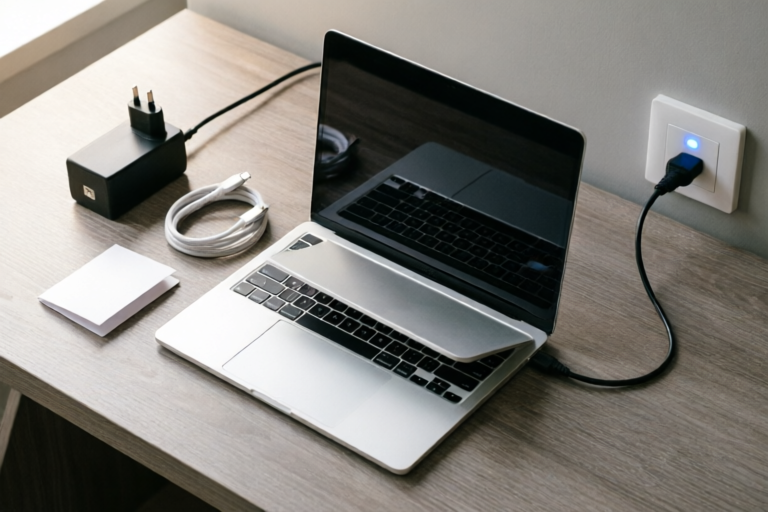
Start by plugging in the power cord to both the computer and a power outlet. Once powered, connect the monitor to the appropriate video output port on your computer, which could be HDMI, DisplayPort, or VGA depending on your hardware. Ensure that the monitor is securely connected and turned on.
Setting Up Keyboard and Mouse
If you're using wired peripherals, connect the keyboard and mouse to the corresponding USB ports on your computer. For wireless devices, follow the manufacturer’s instructions to pair them with your system. Most modern computers automatically detect and install drivers for these common peripherals.
Initial Software Configuration
With your hardware connected, it's time to turn on your computer and begin configuring the software environment.
Turning On the Computer and Selecting Language Preferences
Press the power button to boot up your computer. During the startup process, you may be prompted to select your preferred language and regional settings. Choose the language that best suits your needs and proceed with the installation prompts.
Logging Into Your Account or Creating a New One
Once the operating system loads, log into your existing Microsoft or Apple account if applicable. If this is a new device, create a new user account by following the on-screen instructions. It's advisable to set up a strong password and enable two-factor authentication for added security.
Updating System and Drivers
Keeping your system and drivers up-to-date is crucial for maintaining optimal performance and security. Here’s how you can quickly update your software:
Checking for and Installing System Updates
Most modern operating systems will automatically check for updates during the initial setup process. However, it's always good practice to manually check for any available updates after completing the initial setup. In Windows, go to Settings > Update & Security > Check for updates. On macOS, click the Apple menu > System Preferences > Software Update.
Ensuring All Drivers Are Up-to-Date
Drivers are essential for ensuring proper communication between your hardware and the operating system. Outdated drivers can lead to compatibility issues and reduced performance. To keep your drivers updated, visit the manufacturer’s website or use third-party tools like Driver Booster or Snappy Driver Installer. These tools scan your system for outdated drivers and provide easy updates.
Security Setup
Securing your new computer is one of the most important steps in the setup process. Protecting your data and privacy should be a top priority.
Setting Up Antivirus Software
Install reputable antivirus software to protect your computer from malware, viruses, and other online threats. Popular options include Norton, McAfee, and Kaspersky. Ensure that real-time protection is enabled so that your system scans files as they are downloaded or accessed.
Enabling Firewall Protection
Firewalls act as a barrier between your computer and the internet, blocking unauthorized access. Enable the built-in firewall in your operating system. In Windows, you can find it under Control Panel > System and Security > Windows Defender Firewall. On macOS, go to System Preferences > Security & Privacy > Firewall.
Personalization and Cleanup
Now that your computer is running smoothly and securely, it's time to make it your own. Personalizing your setup enhances usability and productivity.
Adjusting Display Settings and Desktop Layout
Customize your display settings to suit your preferences. Adjust the resolution, color calibration, and refresh rate for optimal visual experience. You can also rearrange icons on your desktop, create folders, and pin frequently used programs to the taskbar or dock.
Removing Unnecessary Pre-Installed Applications
New computers often come with a variety of pre-installed software that you may not need. Identify and uninstall any unwanted programs to free up space and improve performance. Be cautious when removing essential system utilities or drivers.
Conclusion: Final Tips for Optimizing Your New Computer
By following this guide, you've successfully set up your new computer in just five minutes. However, there are additional steps you can take to further optimize your system:
Additional Recommendations for Maximizing Performance
- Optimize Startup Programs: Disable unnecessary programs from launching at startup to speed up boot times.
- Regular Maintenance: Perform regular disk cleanup and defragmentation to maintain system efficiency.
- Backup Data: Use cloud storage or external drives to back up important files regularly.
Encouragement to Explore Further Customization Options
Your new computer is now ready for use, but don't stop here! Take some time to explore additional customization options to enhance your user experience. Experiment with different themes, wallpapers, and settings to make your computer truly yours.
Comments

Super helpful! I had everything done before my coffee was cold.

After following these steps, I went ahead and installed some productivity tools. Highly recommend.

Removing those pre-installed apps saved so much space. My computer feels much faster now.

Great reminder about security! I also set up two-factor authentication for an extra layer.

Updating drivers was a bit tricky. Is there an easier way to ensure all drivers are up-to-date?

I skipped the keyboard and mouse setup since I use wireless ones. Any tips for connecting them quickly?
Worked for me! Got my PC up and running in less than 10 minutes. Thanks!