How to Create a Budget in Excel for Beginners
Master Excel Budgeting Today
Introduction to Budgeting with Excel
Budgeting is an essential tool for managing your finances effectively. It helps you keep track of your income and expenses, plan for future expenses, and achieve your financial goals. Excel, with its powerful features and flexibility, is an excellent choice for creating and maintaining a budget. This guide will walk you through the process of setting up a budget in Excel, inputting your income and expenses, and using formulas and functions to automate and visualize your financial data.
Importance of Budgeting
Budgeting allows you to gain control over your finances, helping you avoid overspending and stay on track with your financial goals. By tracking your income and expenses, you can identify areas where you can cut back and save money. Additionally, budgeting can help you prepare for unexpected expenses and build an emergency fund.
Why Use Excel for Budgeting?
Excel offers a range of features that make it ideal for budgeting. Its spreadsheet format allows you to organize your data clearly and efficiently. You can easily add formulas to calculate totals, percentages, and other important financial metrics. Additionally, Excel's charting tools enable you to create visual representations of your budget, making it easier to understand and analyze your financial data.
Overview of Excel Features Relevant to Budgeting
Several Excel features are particularly useful for budgeting:
- Formulas and Functions: Excel provides a wide range of formulas and functions that can help you perform calculations and automate repetitive tasks.
- Charts and Graphs: These tools allow you to create visual representations of your budget, making it easier to interpret your financial data.
- Data Validation: This feature ensures that only valid data is entered into your budget, reducing errors.
- Conditional Formatting: This tool highlights specific cells based on certain criteria, making it easier to identify important information.
Setting Up Your Budget Workbook
Before you start entering your income and expenses, it's important to set up your Excel workbook properly. This will ensure that your budget is organized and easy to read.
Creating a New Excel File
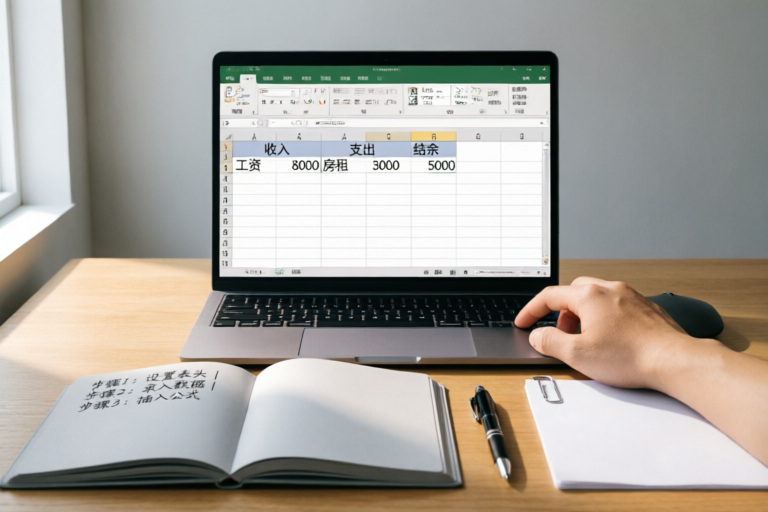
To begin, open Excel and create a new workbook. Save the file with a descriptive name, such as "Personal Budget.xlsx".
Naming Worksheets and Organizing Data
It's a good idea to create separate worksheets for different aspects of your budget. For example, you might have one worksheet for income, another for fixed expenses, and another for variable expenses. Name these worksheets clearly so that you can easily find the information you need.
Basic Formatting Tips for Readability
Formatting your budget properly will make it easier to read and understand. Use bold font for headings, and consider using different colors or shading to highlight important data. Ensure that your columns are wide enough to display all the data, and adjust the row height if necessary. Finally, consider freezing the top row and leftmost column so that you can always see your headings and categories.
Inputting Income and Expenses
Once your workbook is set up, it's time to start entering your income and expenses. This will give you a clear picture of your financial situation and help you identify areas where you can save money.
Listing All Sources of Income
In the income worksheet, list all the sources of income that you receive regularly. This could include your salary, freelance income, rental income, and any other sources of income. Be sure to include the amount and frequency of each income source. For example, you might enter your monthly salary in one cell and your weekly freelance income in another.
Categorizing Different Types of Expenses
In the expenses worksheet, categorize your expenses into fixed and variable categories. Fixed expenses are those that remain the same each month, such as rent, mortgage payments, and car payments. Variable expenses, on the other hand, can vary from month to month, such as groceries, entertainment, and dining out. Within each category, list specific expenses, such as utilities, groceries, and transportation costs.
Using Formulas to Calculate Totals
Use Excel's SUM function to calculate the total income and total expenses for each category. For example, to calculate the total income, select a cell below the list of income sources and enter the formula =SUM(A2:A10), where A2:A10 represents the range of cells containing your income amounts. Similarly, use the SUM function to calculate the total expenses for each category.
Creating Visual Representations (Charts & Graphs)
Visual representations, such as charts and graphs, can help you better understand your budget and make informed decisions about your finances.
How to Insert Charts in Excel
To insert a chart, select the data you want to visualize, including both the income and expense categories. Then, go to the Insert tab on the ribbon and choose the type of chart you want to create. Excel offers several options, including column charts, bar charts, pie charts, and line charts. For a budget, a column chart is often the most effective, as it clearly shows the comparison between income and expenses.
Types of Charts Suitable for Budget Visualization
The following types of charts are particularly useful for visualizing a budget:
- Column Chart: This chart displays income and expenses as vertical bars, making it easy to compare the two.
- Pie Chart: A pie chart can be used to show the percentage of your income allocated to different expense categories.
- Line Chart: A line chart can be useful for tracking changes in your income and expenses over time.
Interpreting the Visual Data to Make Informed Decisions
Once you've created your chart, take some time to interpret the data. Look for trends and patterns in your spending habits. Are there areas where you're consistently overspending? Are there opportunities to cut back on unnecessary expenses? Use this information to make informed decisions about how to adjust your budget.
Automating Your Budget with Formulas and Functions
Excel's formulas and functions can help you automate many aspects of your budget, saving you time and reducing the risk of errors.
Common Functions for Budgeting (SUM, IF, VLOOKUP)
Some of the most useful functions for budgeting include:
- SUM: This function adds up a range of numbers, which is useful for calculating totals for income and expenses.
- IF: This function allows you to test a condition and return one value if the condition is true and another value if it's false. For example, you could use the IF function to highlight cells that exceed a certain threshold.
- VLOOKUP: This function searches for a value in the first column of a table and returns a corresponding value from a specified column. It's useful for looking up prices or rates based on certain criteria.
Conditional Formatting for Highlighting Important Data
Conditional formatting can be used to highlight cells that meet certain criteria, such as exceeding a budget limit or falling below a certain threshold. To apply conditional formatting, select the cells you want to format, go to the Home tab on the ribbon, and click Conditional Formatting. Choose the rule you want to apply, such as "Highlight Cells Rules" or "Top/Bottom Rules", and follow the prompts to complete the formatting.
Tips for Automating Repetitive Tasks
If you have repetitive tasks in your budget, such as updating your expenses each month, consider using macros to automate these tasks. Macros are small programs that can be recorded and run automatically. To record a macro, go to the Developer tab on the ribbon, click Record Macro, perform the task you want to automate, and then click Stop Recording. You can then run the macro whenever you need to repeat the task.
Reviewing and Adjusting Your Budget
Regularly reviewing and adjusting your budget is essential for staying on track with your financial goals. As your financial situation changes, your budget should reflect those changes.
Regularly Reviewing Your Budget Progress
Set aside time each month to review your budget and compare it to your actual income and expenses. This will help you identify any discrepancies and make adjustments as needed. Consider using a template that includes a section for tracking your actual income and expenses, along with a section for comparing them to your budgeted amounts.
Adjusting Categories as Needed
If you notice that you're consistently overspending in a particular category, consider adjusting your budget to allocate more funds to that category. Conversely, if you're under-spending in a category, you may be able to reallocate those funds to other areas of your budget.
Strategies for Staying on Track with Your Financial Goals
To stay on track with your financial goals, consider setting up reminders to review your budget regularly. You can also use Excel's goal seeking feature to determine how much you need to save or spend to reach a specific goal. Additionally, consider setting up a savings account specifically for your financial goals, and transfer a portion of your income to this account each month.
Conclusion
By following the steps outlined in this guide, you can create a budget in Excel that helps you manage your finances more effectively. Remember to regularly review and adjust your budget as your financial situation changes. With practice and refinement, you'll become more skilled at using Excel for budgeting and achieving your financial goals.
For further learning, consider exploring online tutorials, books, and courses that focus on Excel and personal finance. Additionally, joining online communities and forums can provide valuable insights and support as you continue to develop your budgeting skills.
Comments

Would love to see more advanced tips on forecasting future expenses.

Really helpful! I adjusted my categories after reviewing my budget and it made a big difference.

I tried this but got stuck on the charts part. Could someone explain it again?

This is awesome. I used conditional formatting to highlight areas where I overspend. Really helps to stay on track.

I followed the steps and now I can see where my money goes. Love the charts!
Great tutorial! Just one question though, how do you handle irregular income like freelance work?
Worked for me! I was able to set up my first budget in Excel. The part about using SUM and IF functions really helped.