How to Clean a Laptop Screen Without Scratching It
Keep Your Laptop Screen Looking New
Introduction to Cleaning Your Laptop Screen
Importance of keeping your laptop screen clean: A dirty laptop screen can reduce visibility, strain your eyes, and even harbor germs. Regular cleaning ensures optimal performance and a pleasant user experience.
Common mistakes people make when cleaning their screens: Using paper towels, harsh chemicals, or abrasive materials can cause scratches and damage. It’s crucial to know the right way to clean your screen.
Overview of the steps to safely clean your laptop screen: This guide will walk you through the proper method to clean your laptop screen without scratching it, ensuring a long-lasting display.
Necessary Tools and Materials
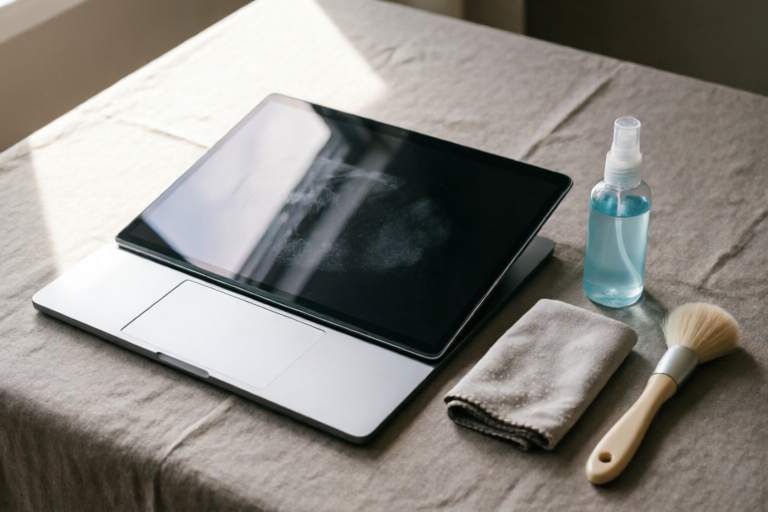
List of recommended cleaning supplies: You’ll need a microfiber cloth, distilled water, and isopropyl alcohol (at least 70% concentration). These items are gentle yet effective in removing dirt and grime.
Why these materials are preferred over others: Microfiber cloths are soft and lint-free, making them ideal for delicate surfaces. Distilled water prevents mineral deposits, and isopropyl alcohol disinfects while dissolving oils and residues.
Safety precautions before starting the cleaning process: Ensure your laptop is turned off and unplugged. Avoid using excessive force and always check the manufacturer’s guidelines for cleaning.
Pre-Cleaning Steps: Preparation and Inspection
Turning off and unplugging your laptop: Power down your device to prevent any accidental damage during cleaning. Unplug all cables to avoid any potential electrical hazards.
Checking for any debris or dust on the surface: Use a soft brush or compressed air to remove loose particles before applying any liquid solutions.
Ensuring the screen is cool to the touch: Wait until the screen has cooled down to avoid condensation or thermal shock, which can lead to permanent damage.
The Cleaning Process Step-by-Step
Gently wiping the screen with a dry microfiber cloth: Start by wiping the screen with a dry cloth to remove dust and loose particles. This step helps prevent scratching from larger debris.
Using a solution of water and mild detergent if necessary: If there are stubborn stains, mix a small amount of mild dish soap with distilled water. Dip the corner of your microfiber cloth into the solution, then wring it out thoroughly. Gently wipe the screen in circular motions, avoiding excessive moisture.
Avoiding harsh chemicals and abrasive materials: Never use products like ammonia, bleach, or window cleaners. These can strip away the anti-glare coating and leave permanent damage.
Post-Cleaning Care Tips
Storing your laptop in a protective case when not in use: Keeping your laptop in a padded sleeve or bag protects it from dust, scratches, and accidental bumps.
Regular maintenance routines to keep your screen looking new: Wipe down your screen weekly with a dry cloth and perform a thorough cleaning every few months. This routine helps maintain clarity and prevents buildup.
Signs that professional help might be needed: If your screen shows persistent discoloration, dead pixels, or unusual behavior, it may be time to consult a professional technician.
Conclusion and Final Thoughts
Recap of key points discussed in the article: Proper cleaning involves turning off the laptop, using appropriate materials, and avoiding harsh chemicals. Regular maintenance and care extend the life of your screen.
Encouragement to adopt good habits for maintaining your laptop's appearance: Incorporate these cleaning practices into your routine to ensure your laptop remains functional and visually appealing.
Additional resources for further reading: For more detailed guides and tips, visit reputable tech blogs or forums dedicated to laptop care. Stay informed and proactive in protecting your investment.
Comments

Super helpful! My screen was a bit oily, and this method got rid of the fingerprints without leaving any streaks.

Great guide! I always use a screen protector, but this helps keep it clean underneath. Any advice for those who don't have one?

I tried this and it worked great! Just wanted to confirm, is it okay to skip the pre-cleaning step if there's no visible debris?
After following these steps, my screen is cleaner than ever. Will definitely do this regularly from now on.

Is it really safe to use isopropyl alcohol? I've heard mixed things about it.

I was skeptical about using water, but the mixture with mild detergent did the trick. No scratches at all!

Worked like a charm! My screen was super dusty but now it looks brand new. Thanks for the tips on avoiding scratches.