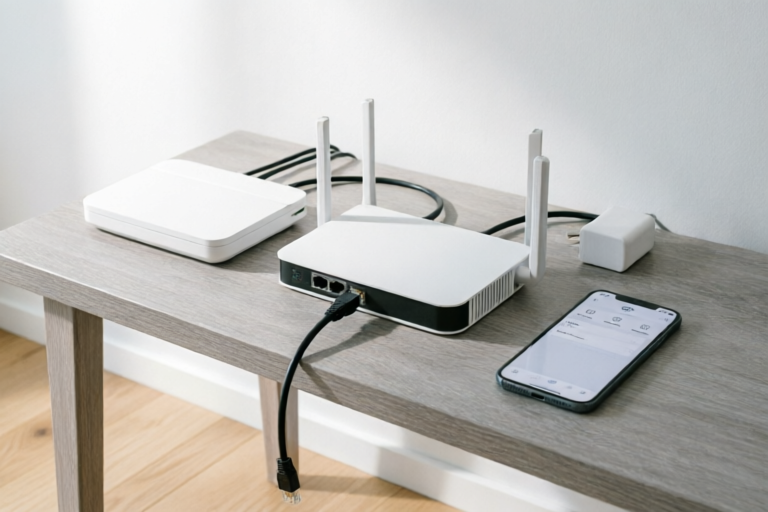
Step-by-Step Guide to Setting Up a Home Wi-Fi Network
Your Ultimate Guide to a Secure and Efficient Home Wi-Fi Network
Step-by-Step Guide to Setting Up a Home Wi-Fi Network
1. Introduction to Home Wi-Fi Setup
Setting up a home Wi-Fi network is essential for seamless internet connectivity across multiple devices. A well-configured network ensures that all your smart devices, computers, and smartphones can access the internet without interruptions. This guide will walk you through the process of setting up a robust home Wi-Fi network, from selecting the right equipment to ensuring optimal performance and security.
2. Preparing Your Equipment
Before diving into the setup process, it's important to gather the necessary hardware and have a basic understanding of how each component works together.
List of Necessary Hardware
- Modem: Connects your home to the internet service provider (ISP).
- Router: Distributes the internet signal throughout your home.
- Ethernet Cables: Connect the modem to the router and other devices.
- Power Adapter: Ensure each device has a stable power supply.
Tips for Choosing the Right Equipment
When selecting your equipment, consider factors such as the size of your home, the number of devices you plan to connect, and any specific features you may need. For instance, if you have a large house, look for a router with a high-gain antenna or mesh system to ensure strong signal coverage. If you're concerned about security, opt for a router that supports advanced encryption protocols like WPA3.
3. Router Placement and Initial Setup
Proper placement of your router is crucial for achieving optimal signal strength and coverage throughout your home.
Optimal Placement for Your Router
Place your router in a central location, away from walls and obstructions. Elevate it if possible, as signals travel better through open air than through solid objects. Avoid placing it near microwaves or cordless phones, as these can interfere with Wi-Fi signals.
Steps to Connect the Router to Your Modem
- Connect one end of an Ethernet cable to the WAN port on the router.
- Connect the other end of the Ethernet cable to the LAN port on the modem.
- Power on both the modem and the router.
- Follow the first-time setup wizard on the router's interface to complete the initial configuration.
First-Time Setup Wizards and Initial Configuration Options
The first-time setup wizard will guide you through setting up your Wi-Fi network, including creating a network name (SSID) and password. You'll also have the option to configure additional settings, such as guest networks and parental controls.
4. Securing Your Wi-Fi Network
Securing your Wi-Fi network is vital to protect your personal information and prevent unauthorized access.
Importance of Network Security and Common Threats
Unsecured networks are vulnerable to various threats, including hacking, data theft, and malware infections. By taking steps to secure your network, you can minimize these risks and ensure a safer online experience.
How to Set a Strong Password and Enable WPA3 Encryption
To enhance your network security, use a strong, unique password for your Wi-Fi network. Avoid using easily guessable passwords like birthdays or common words. Additionally, enable WPA3 encryption, which provides stronger protection against unauthorized access.
Additional Security Measures
- MAC Filtering: Limit access to your network by only allowing specific devices with known MAC addresses.
- Firewall: Enable the built-in firewall on your router to block malicious traffic.
5. Customizing Your Network Settings
Once your network is up and running, you can customize various settings to optimize performance and functionality.
Adjusting SSID Name and Channel Settings
Choose a unique SSID name that doesn't reveal personal information. You can also change the default channel to avoid interference from neighboring networks.
Configuring Guest Networks and Parental Controls
Create a separate guest network to allow visitors access without compromising your main network's security. Additionally, set up parental controls to restrict access to inappropriate content for children.
Troubleshooting Common Issues and Improving Network Speed
If you experience slow speeds or connectivity issues, try resetting your router, updating firmware, or moving the router to a more central location. You can also use tools like speed tests to diagnose and address performance problems.
6. Conclusion and Final Tips
In conclusion, setting up a home Wi-Fi network involves careful planning and attention to detail. By following the steps outlined in this guide, you can create a secure, efficient, and reliable network that meets your household's needs. Remember to regularly update your router's firmware and monitor your network for any suspicious activity. For further assistance, consult the user manual or contact your ISP for support.
Comments

The troubleshooting section was super helpful. Fixed my slow Wi-Fi in no time!

Placing the router in the center of the house really helped with signal strength.

Added parental controls and finally have some peace of mind with the kids online.
Is there an easier way to set up a guest network? This seems too complicated.

Adjusted the channel settings and noticed a huge improvement in speed. Worked for me!
Thanks for the security tips! I enabled WPA3 and feel much safer now.

Still confused about the MAC filtering part... Can someone explain it more simply?

Followed the router placement tips and my Wi-Fi is way faster now!